> ## Documentation Index
> Fetch the complete documentation index at: https://docs.playbook3d.com/llms.txt
> Use this file to discover all available pages before exploring further.

# Blender Add-On

> Playbook's Blender Plugin streams render passes (depth, beauty, mask, outline) from Blender into ComfyUI Workflows. 

<Info>
  Works out of the box with **Blender 4.2 LTS+**
</Info>

<iframe width="560" height="315" src="https://www.youtube.com/embed/8rDd1vPnn4I?si=5KSh_Q3G-w0l-t7L" title="YouTube video player" frameborder="0" allow="accelerometer; autoplay; clipboard-write; encrypted-media; gyroscope; picture-in-picture; web-share" referrerpolicy="strict-origin-when-cross-origin" allowfullscreen />

## Installation

<Steps>
  <Step title="Download from Gumroad">
    👉 [Download from Gumroad](https://playbook3d.gumroad.com/l/kwfam)
  </Step>

  <Step title="Install add-on">
    Click **`Edit`**, then `Preferences`

    Click **`Install`**, then upload the **.zip file, and enable the checkbox**

    {" "}
  </Step>

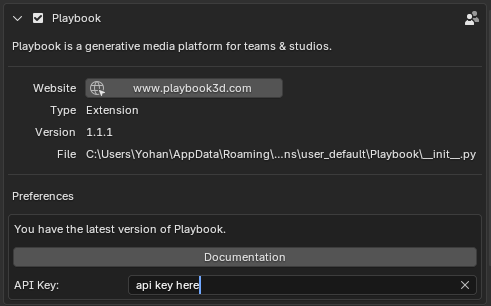
  <Step title="Copy & Paste your API key">
    Grab your API key from your [beta.playbook3d.com](https://beta.playbook3d.com/) account

    Paste it into the Add-on settings

    <Frame>
      <img src="https://mintcdn.com/playbook/tkxhIHJ9EBsxTrRu/images/BlenderPlugin/api_key.png?fit=max&auto=format&n=tkxhIHJ9EBsxTrRu&q=85&s=d418a3532a10c718a5466eefd16862e6" alt="API Key" width="491" height="306" data-path="images/BlenderPlugin/api_key.png" />
    </Frame>
  </Step>
</Steps>

## Usage

<Steps>
  <Step title="Click N to bring up the plugin.">
    In the viewport, **click N** and select Playbook from the right side tab.
  </Step>

  <Step title="Clone the Blender template workflow.">
    Head over to [beta.playbook3d.com](https://beta.playbook3d.com/) and clone the template SDXL workflow for Blender.

    <Frame height="200">
      <img src="https://mintcdn.com/playbook/tkxhIHJ9EBsxTrRu/images/BlenderPlugin/blender_template.png?fit=max&auto=format&n=tkxhIHJ9EBsxTrRu&q=85&s=27f48a29d2ba548933982fd466207b48" alt="Teams" width="812" height="630" data-path="images/BlenderPlugin/blender_template.png" />
    </Frame>
  </Step>

  <Step title="Select your team and workflow.">
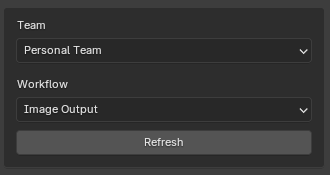
    Select your desired Playbook team and the workflow you'd like to run with Blender.

    <Frame>
      <img src="https://mintcdn.com/playbook/tkxhIHJ9EBsxTrRu/images/BlenderPlugin/teams.png?fit=max&auto=format&n=tkxhIHJ9EBsxTrRu&q=85&s=249a2c387ab0bbcedfc7a75fd4eb7fc3" alt="Teams" width="330" height="175" data-path="images/BlenderPlugin/teams.png" />
    </Frame>
  </Step>

  <Step title="Configure render settings.">
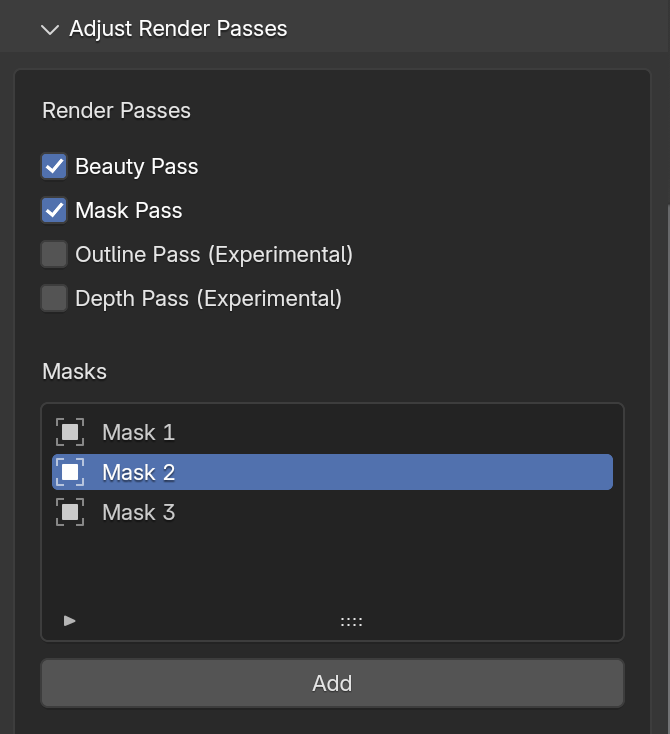
    Enable your desired render passes. The add-on supports a total of 4 masks - 3 assigned, the 4th being a catch all. **Note that Depth and Outline passes are experimental and will work better in uncontained, outdoor scenes.**

    <Tip>
      **View -> Align View -> Align Active Camera to View** to capture from active camera.
    </Tip>

    <Frame>
      <img src="https://mintcdn.com/playbook/tkxhIHJ9EBsxTrRu/images/BlenderPlugin/render_passes.png?fit=max&auto=format&n=tkxhIHJ9EBsxTrRu&q=85&s=37ca739a5647f002e8cf2eb077bdc4c8" alt="Teams" width="670" height="734" data-path="images/BlenderPlugin/render_passes.png" />
    </Frame>
  </Step>

  <Step title="Run workflow in the cloud.">
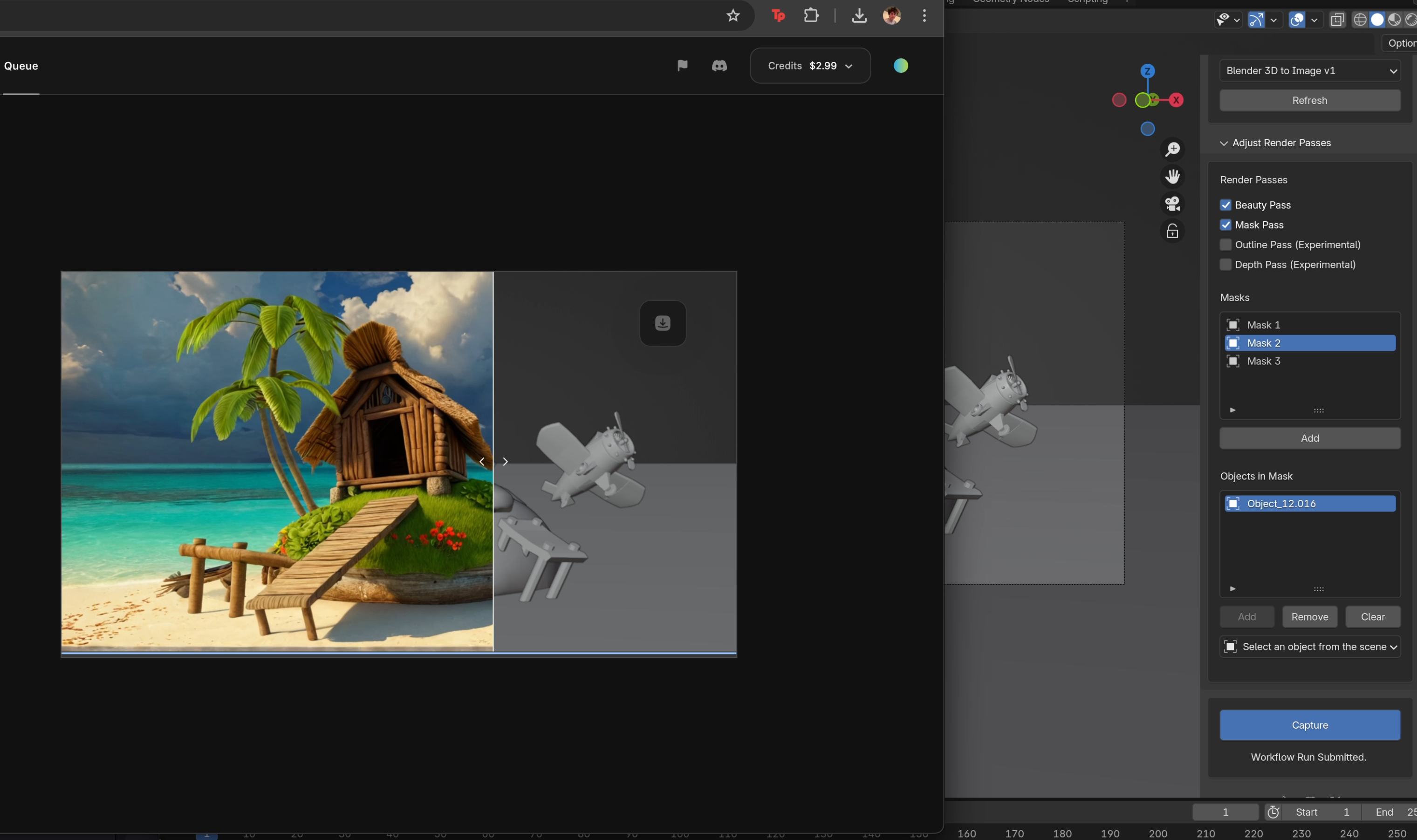
    Enter your desired prompts per each mask in the Playbook editor. Click "Capture" from Blender to initiate a workflow run using the streamed render passes. **Note that no generations will occur if the editor is not up.**

    <Frame>
      <img src="https://mintcdn.com/playbook/tkxhIHJ9EBsxTrRu/images/BlenderPlugin/side_by_side.png?fit=max&auto=format&n=tkxhIHJ9EBsxTrRu&q=85&s=b8e3d416609c22e1d528db1e194ce4bc" alt="Teams" width="3041" height="1803" data-path="images/BlenderPlugin/side_by_side.png" />
    </Frame>
  </Step>

  <Step title="Optional: Access local render passes.">
    <Note>
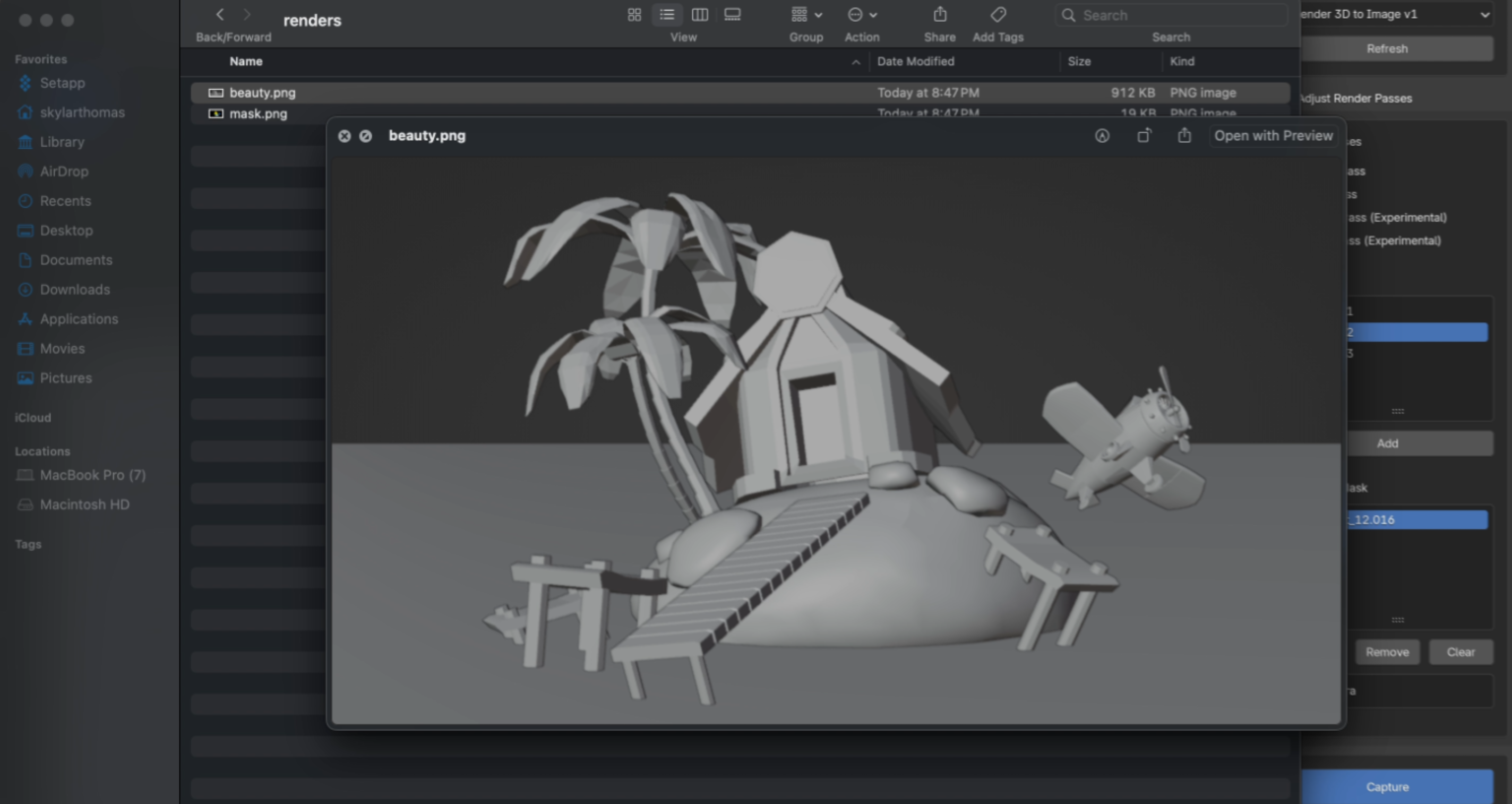
      Access locally saved passes at **/Users/** Your Username **/Library/Application Support/Blender/4.2/extensions/user\_default/Playbook/renders**
    </Note>

    <Frame>
      <img src="https://mintcdn.com/playbook/tkxhIHJ9EBsxTrRu/images/BlenderPlugin/local_passes.png?fit=max&auto=format&n=tkxhIHJ9EBsxTrRu&q=85&s=3db784e281ce7f13a433938691f0b04b" alt="Teams" width="2848" height="1514" data-path="images/BlenderPlugin/local_passes.png" />
    </Frame>
  </Step>
</Steps>